Linux powers 96% of the world's top web servers, every major cloud platform, and all 500 of the world's fastest supercomputers. Whether you are aiming for a career in system administration, DevOps, cloud engineering, or security — Linux fluency is the skill that connects every discipline in modern technology.
This guide gives you a structured, hands-on path to learning Linux in 90 days. You will find a week-by-week roadmap, copy-paste terminal commands, step-by-step environment setup instructions, three real projects, and a full command cheat sheet. By the end, you will have the skills to deploy and secure a production Linux server from scratch.
What you will achieve:
- Days 1–30 (Foundation): Navigate the filesystem confidently, manage files and packages, and SSH into a remote server.
- Days 31–60 (Intermediate): Master users, permissions, systemd services, cron jobs, and bash scripting basics.
- Days 61–90 (Applied): Deploy a LAMP stack, automate backups, harden a server, and build a portfolio of real Linux projects.
→ Jump straight to the command cheat sheet if you are already set up and want the reference table.
Why Learn Linux?
Linux is not just another operating system — it is the foundation the modern internet is built on. Every Docker container, every AWS EC2 instance, every Android phone, and every production web server runs on the Linux kernel. The Linux Foundation reports that 85% of hiring managers prioritize Linux knowledge when filling cloud, DevOps, and back-end engineering roles.
Here is why learning Linux is one of the highest-leverage skills in technology:
- Universal infrastructure layer. Cloud platforms (AWS, GCP, Azure), containers (Docker, Kubernetes), and CI/CD pipelines all assume Linux as the operating environment.
- Career premium. Linux-certified professionals consistently command higher salaries than Windows-only administrators in equivalent roles.
- Deep understanding. Linux teaches you how computers and networks actually work — file systems, processes, permissions, and networking — making every other technology easier to learn.
- Free and open. Every tool, every distro, every documentation page is freely available. The barrier to entry is time, not money.
According to W3Techs, Linux's share of web servers has grown consistently for a decade and shows no sign of slowing. If you work in technology, you will encounter Linux — better to master it than stumble around it.
Which Linux Distribution Should You Start With?
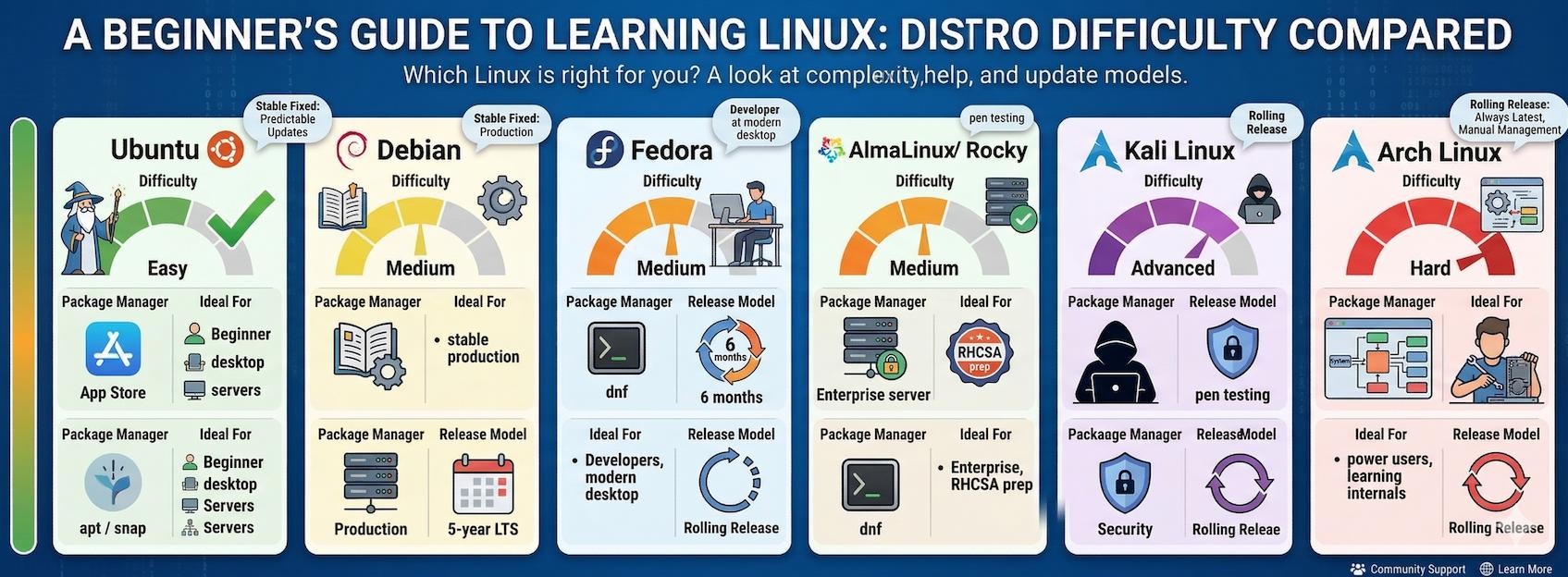
A Linux distribution (distro) packages the Linux kernel with a package manager, desktop environment, and default tooling. The kernel is identical across all distros — what differs is the philosophy, target audience, and included software. Your choice of starting distro significantly affects how smooth your learning curve will be.
Recommended Distributions by Use Case
| Distro | Package Manager | Best For | Difficulty | Release Model |
|---|---|---|---|---|
| Ubuntu 24.04 LTS | apt / snap | Beginners, desktop, servers | Easy ✓ | Fixed (5-year LTS) |
| Debian 12 | apt | Stable production servers | Medium | Fixed (slow cycle) |
| Fedora 40 | dnf | Developers, modern desktop | Medium | Fixed (6 months) |
| AlmaLinux / Rocky Linux | dnf / yum | Enterprise, RHCSA prep | Medium | Fixed (RHEL-based) |
| Kali Linux | apt | Penetration testing, security | Advanced | Rolling |
| Arch Linux | pacman | Power users, learning internals | Hard | Rolling |
Which Distro Should You Pick?
Start with Ubuntu 24.04 LTS. It has the largest community, the best beginner documentation, and almost every Linux tutorial on the internet is written with Ubuntu in mind. Once you are comfortable with the fundamentals, branch out: try AlmaLinux if your target is enterprise or RHCSA certification, or Arch Linux if you want to understand Linux internals by building a system from scratch.
Server vs desktop? If your goal is Linux server administration — which is the most career-relevant skill — install the server edition (no GUI). Forcing yourself to work exclusively in the terminal accelerates learning far more than using a graphical desktop.
The 90-Day Learning Roadmap
Consistency beats intensity. Aim for 3–5 hours per week — that is roughly 30 minutes per day. The milestones below are ordered by dependency: each phase builds directly on the previous one.
Phase 1: Foundation (Days 1–30)
Goal: be comfortable in the terminal, understand the filesystem, install packages, and SSH into a remote server.
- Day 1–2: Install Ubuntu in VirtualBox or set up WSL2 on Windows (see Section 4 below).
- Day 3–4: Navigate the filesystem — ls, cd, pwd, tree.
- Day 5–6: Create, copy, move, and delete files — touch, mkdir, cp, mv, rm.
- Day 7–9: Read and search files — cat, less, grep, head, tail.
- Day 10: Understand the Linux directory structure — /etc, /var, /home, /proc, /usr.
- Day 11–12: Install and remove software with apt (or dnf on Fedora/AlmaLinux).
- Day 13: Read documentation using man pages, --help, and TLDR pages.
- Day 14–15: Practice I/O redirection — >, >>, |, 2>&1.
- Day 16–18: SSH into a remote server. A MonoVM Linux VPS or a free sandbox like Webminal works well.
- Day 19–20: Search for files using find and content using grep -r.
✅ Phase 1 checkpoint: Can you SSH into a server and locate a specific file using find or grep? If yes, move to Phase 2.
Phase 2: Intermediate (Days 31–60)
Goal: understand users, permissions, services, automation, and basic networking.
- Day 31–33: Manage users and groups — useradd, usermod, passwd, groups.
- Day 34–36: Master file permissions — chmod, chown, umask, and the sticky bit.
- Day 37–39: Manage systemd services — systemctl start, stop, enable, status.
- Day 40–41: Monitor processes — ps aux, top, htop, kill, nice.
- Day 42–44: Schedule automated tasks with cron — write a crontab entry for daily backups.
- Day 45–50: Write your first bash script — variables, loops, conditionals, and functions.
- Day 51–53: Networking basics — ip addr, ss, ping, traceroute, curl.
- Day 54–55: Configure a firewall with ufw (Ubuntu) or firewalld (Fedora/RHEL).
- Day 56–58: Set up SSH key-based authentication — generate a key pair and copy the public key to your server.
- Day 59–60: Read system logs with journalctl and tail -f /var/log/syslog.
✅ Phase 2 checkpoint: Can you create a sudo user, configure UFW rules, and run a scheduled cron job? If yes, move to Phase 3.
Phase 3: Applied (Days 61–90)
Goal: deploy real server infrastructure, automate operations, and build a portfolio.
- Day 61–65: Deploy a LAMP stack (Apache, MySQL, PHP) on a VPS from scratch (see Project 1 below).
- Day 66–67: Configure Apache virtual hosts or Nginx server blocks for multiple domains.
- Day 68–70: Write an automated backup script using rsync and cron (see Project 2 below).
- Day 71–73: Harden a server — disable root SSH login, configure fail2ban, enable automatic updates.
- Day 74–76: Disk and storage management — df, du, lsblk, fdisk, mount.
- Day 77–78: Log management — journalctl, /var/log/, and logrotate.
- Day 79–82: Install Docker, pull an image, and run your first containerized application.
- Day 83–85: Install an SSL certificate with Certbot (Let's Encrypt) on your web server.
- Day 86–88: Write a system health check script that monitors CPU, RAM, disk, and service status.
- Day 89–90: Document your projects on GitHub. Your Linux portfolio starts here.
✅ Final checkpoint: Is your LAMP server live, backups automated, SSH hardened, and Docker running? Congratulations — you are now an intermediate Linux administrator.
How to Practice Linux Safely
Never experiment on a production server while you are learning. Use one of these three safe environments — all allow you to break things freely and reset in minutes without consequences.
Option A: Install Ubuntu in VirtualBox (Recommended)
VirtualBox is free, runs on Windows, macOS, and Linux, and supports snapshots — meaning any mistake can be undone in seconds. This is the closest experience to running a real server.
- Download VirtualBox from virtualbox.org. Also download the Extension Pack.
- Download Ubuntu Server 24.04 LTS from ubuntu.com. The server edition (CLI only) is recommended — it forces you to use the terminal exclusively.
- Create a new VM: New → Name "Ubuntu-Lab" → Type: Linux → Version: Ubuntu (64-bit) → allocate at least 2 GB RAM and 20 GB disk.
- Attach the ISO: Settings → Storage → Controller: IDE → attach the Ubuntu .iso file.
- Install Ubuntu by starting the VM and following the installer with default options.
- Take a snapshot immediately: Machine → Take Snapshot → "Fresh Install". This is your safety net — restore it any time you break something.
After installation, run these first commands to update the system:
sudo apt update && sudo apt upgrade -y
sudo apt install -y vim curl git net-tools
ip addr show
Option B: Set Up WSL2 on Windows (Fastest Start)
WSL2 runs a real Linux kernel directly inside Windows with no separate partition and minimal overhead. You can have a Linux terminal running in under 10 minutes.
- Open PowerShell as Administrator (Win+X → Terminal Admin).
- Run the install command:
wsl --install
- Restart your computer. Ubuntu launches automatically after reboot.
- Create your Linux username and password when prompted.
- Update packages:
sudo apt update && sudo apt upgrade -y
Useful WSL2 commands: wsl --list --verbose (see installed distros) · wsl -d Kali-linux (switch distros) · Access Windows files at /mnt/c/
Option C: Free Online Linux Labs (Zero Setup)
If you want a Linux terminal right now without installing anything, these browser-based sandboxes provide a real shell in seconds:
- Webminal.org — browser-based Ubuntu terminal, no registration required for basic use.
- Play with Docker — 4-hour Linux + Docker sandbox. Ideal if you also want to learn containers.
- KillerCoda — guided scenario-based labs for Linux, Kubernetes, and security.
- TryHackMe — gamified Linux learning paths for beginners and security-focused learners.
Essential Linux Commands — Cheat Sheet
These commands cover approximately 90% of everyday Linux administration tasks. Practice each group in your VM or WSL2 terminal — reading commands is not the same as running them.
File and Directory Operations
# Navigation
ls -lah
# list files — long format, all hidden, human-readable sizes
cd /var/log
# change to a directory
pwd
# print current working directory
tree -L 2
# show directory tree (2 levels deep)


# Create, copy, move, delete
mkdir -p projects/myapp
# create nested directories at once
touch config.yml
# create an empty file
cp -r source/ dest/
# copy a directory recursively
mv config.old config.bak
# rename or move a file
rm -rf /tmp/old-cache/
# delete a directory — use carefully

# Search and filter
find /etc -name "*.conf" -type f
# find all .conf files
grep -r "error" /var/log/ --include="*.log"
# search inside log files
cat access.log | grep "404" | wc -l
# count 404 errors in a log
File Permissions, Users and Groups
# Understanding permissions: rwxrwxrwx = owner / group / others
ls -l deploy.sh

# -rw-r--r-- 1 ubuntu ubuntu 1234 Jan 1 deploy.sh

chmod 755 deploy.sh
# owner: rwx, group and others: r-x
chmod +x deploy.sh
# add execute permission for all users
chown www-data:www-data /var/www/html
# change owner and group


# User management
sudo useradd -m -s /bin/bash john
# create a user with home directory and bash shell
sudo passwd john
# set a password for the user
sudo usermod -aG sudo john
# add john to the sudo group
groups john
# display john's group memberships
Package Management
apt — Ubuntu and Debian
sudo apt update
# refresh the package index
sudo apt upgrade -y
# upgrade all installed packages
sudo apt install nginx
# install a package
sudo apt remove nginx
# remove a package
sudo apt autoremove
# remove unused dependencies
apt search redis
# search for packages by name
dnf — Fedora, RHEL, AlmaLinux, Rocky Linux
sudo dnf check-update
# check for available updates
sudo dnf upgrade -y
# upgrade all packages
sudo dnf install httpd
# install a package
sudo dnf remove httpd
# remove a package
sudo dnf autoremove
# clean up unused dependencies
pacman — Arch Linux and Manjaro
sudo pacman -Syu
# sync repositories and upgrade all packages
sudo pacman -S nginx
# install a package
sudo pacman -R nginx
# remove a package
sudo pacman -Qs redis
# search installed packages
Networking and Services
# Network diagnostics
ip addr show
# all network interfaces and IP addresses
ss -tulnp
# listening ports (modern replacement for netstat)
curl -I https://monovm.com
# check HTTP response headers for a URL
ping -c 4 8.8.8.8
# test connectivity (sends 4 packets)
traceroute google.com
# trace the network path to a host


# SSH — remote server access
ssh ubuntu@203.0.113.10
# connect to a remote server
ssh-keygen -t ed25519
# generate a modern SSH key pair
ssh-copy-id ubuntu@203.0.113.10
# copy your public key to the server
scp backup.tar.gz ubuntu@server:/tmp/
# copy a file securely to a server


# systemd service management
sudo systemctl start nginx
# start a service
sudo systemctl stop nginx
# stop a service
sudo systemctl enable nginx
# start the service automatically on boot
sudo systemctl status nginx
# check whether the service is running
sudo journalctl -u nginx -f
# follow live service logs


# UFW firewall (Ubuntu)
sudo ufw allow 22/tcp
# allow SSH connections
sudo ufw allow 80,443/tcp
# allow HTTP and HTTPS traffic
sudo ufw enable
# activate the firewall
sudo ufw status verbose
# display all active rules
Download the free cheat sheet: We have condensed the most important 40 Linux commands, the file permissions chart, cron syntax, and VirtualBox/WSL2 setup steps into a single print-ready PDF. Download the MonoVM Linux Command Cheat Sheet (PDF).
Projects and Exercises
The fastest way to solidify Linux skills is building things that break. The three projects below mirror real production server tasks and each one reinforces multiple skills from the roadmap simultaneously.
Project 1: Deploy a LAMP Stack on a VPS Hosting
Difficulty: Intermediate | Time: 3–4 hours | Skills: apt, systemctl, Apache, MySQL, UFW
A LAMP stack (Linux + Apache + MySQL + PHP) is the classic web server setup powering millions of websites. Building one from scratch in a single session teaches package management, service configuration, and basic web server security all at once.
# Install all components
sudo apt update
sudo apt install -y apache2 mysql-server php libapache2-mod-php php-mysql


# Start and enable services to survive reboots
sudo systemctl enable --now apache2 mysql


# Secure the MySQL installation
sudo mysql_secure_installation


# Open the firewall for web traffic
sudo ufw allow 'Apache Full'


# Verify PHP is working
echo '<?php phpinfo(); ?>' | sudo tee /var/www/html/info.php

# Visit http://YOUR_SERVER_IP/info.php

# Important: delete this file after testing
Verification: Visit your server's IP address in a browser. You should see the Apache default page. Then navigate to /info.php to confirm PHP is processing correctly. Try creating a simple index.html in /var/www/html/ and viewing it in your browser.
Project 2: Automate Server Backups with rsync and cron
Difficulty: Intermediate | Time: 1–2 hours | Skills: bash scripting, rsync, cron, logging
Production servers require automated, tested backups. This script creates timestamped backups of a directory, retains the last 7 days of backups, and logs every operation — exactly as a professional sysadmin would deploy it.
#!/bin/bash

# backup.sh — automated daily backup with 7-day rotation

SRC="/var/www/html"
DEST="/backups"
DATE=$(date +%Y-%m-%d)
LOG="/var/log/backup.log"
KEEP_DAYS=7

mkdir -p "$DEST"
rsync -avz --delete "$SRC/" "$DEST/backup-$DATE/" >> "$LOG" 2>&1


# Remove backups older than KEEP_DAYS days
find "$DEST" -maxdepth 1 -type d -mtime +$KEEP_DAYS -exec rm -rf {} +

echo "[$DATE] Backup completed successfully" >> "$LOG"
Save this script, make it executable, then schedule it with cron:
sudo chmod +x /usr/local/bin/backup.sh
sudo crontab -e


# Add this line to run the backup every day at 2:00 AM:
0 2 * * * /usr/local/bin/backup.sh


# Monitor the backup log
sudo tail -f /var/log/backup.log
Project 3: Write a System Health Check Script
Difficulty: Beginner+ | Time: 1–1.5 hours | Skills: bash, variables, loops, output formatting
Build a script that reports CPU load, memory usage, disk space, and service status in a single structured output. This is a real tool that system administrators run as a daily health check.
#!/bin/bash

# syscheck.sh — server health status report

echo "=== HEALTH REPORT: $(hostname) — $(date) ==="
echo ""


# CPU load average
LOAD=$(uptime | awk -F'load average:' '{print $2}' | cut -d',' -f1 | xargs)
echo "CPU Load (1m):  $LOAD"


# Memory usage
MEM=$(free -h | awk '/^Mem:/ {print $3 " / " $2}')
echo "Memory Used:    $MEM"


# Disk usage (excluding tmpfs)
echo ""
echo "Disk Usage:"
df -h --output=target,pcent | grep -v "tmpfs" | tail -n +2


# Service status
echo ""
echo "Service Status:"
for svc in nginx mysql ssh; do
  STATUS=$(systemctl is-active "$svc" 2>/dev/null || echo "not-installed")
  printf "  %-12s %s\n" "$svc:" "$STATUS"
done
Troubleshooting and Common Pitfalls
Every Linux learner hits the same walls. The following table covers the most common errors and their solutions — no hour-long Stack Overflow sessions required.
| Error or Symptom | Diagnostic Command | Fix |
|---|---|---|
| apt locked / dpkg errors | sudo lsof /var/lib/dpkg/lock-frontend | Kill the blocking process, then run sudo dpkg --configure -a |
| Broken packages | sudo apt --fix-broken install | Follow with sudo apt autoremove && sudo apt autoclean |
| Permission denied | ls -la /path/to/file | Prefix the command with sudo, or fix ownership with chmod or chown |
| Service will not start | sudo journalctl -u servicename -xe | Read the last 50 log lines — usually a config file syntax error |
| Disk full | df -h && du -sh /var/* | sort -rh | head | Clear /tmp, rotate logs, run sudo apt autoremove |
| SSH connection refused | sudo systemctl status sshd | Start the sshd service and check sudo ufw status to confirm port 22 is open |
| Command not found | which commandname | Install the package (apt install packagename) or check your $PATH |
The golden debugging rule: Always check logs first. Running sudo journalctl -xe or tail -50 /var/log/syslog will reveal exactly what broke in 95% of cases. Linux error messages are precise — read them carefully before searching online.
Linux Career Paths and Certifications
Linux skills open doors across system administration, DevOps, cloud architecture, and security engineering. Certifications validate your skills to employers — especially for mid-to-senior roles where you need to demonstrate capability before an interview. Here are the three most respected Linux credentials:
RHCSA — Red Hat Certified System Administrator
- Issued by: Red Hat, Inc.
- Exam fee: approximately $450–550
- Study time: 3–6 months
- Format: hands-on, performance-based on a live Red Hat system
- Best for: enterprise environments, government contractors, large-scale infrastructure roles
The RHCSA is the most respected enterprise Linux certification. Because the exam is entirely hands-on — no multiple choice — it genuinely proves operational competence. Required for many mid-level sysadmin and DevOps roles at large organizations.
LFCS — Linux Foundation Certified System Administrator
- Issued by: The Linux Foundation
- Exam fee: approximately $395
- Study time: 2–4 months
- Format: performance-based, covers Ubuntu and CentOS
- Best for: vendor-neutral environments, those who want a clear progression path (LFCS → LFCE)
The LFCS is a solid first certification. It is vendor-neutral, respected across the industry, and pairs naturally with the LFCE (Engineer) for career growth. Preparation materials from the Linux Foundation are high quality.
CompTIA Linux+
- Issued by: CompTIA
- Exam fee: approximately $349
- Study time: 1–3 months
- Format: multiple choice and performance-based
- Best for: entry-level candidates, those transitioning from Windows IT, DoD 8570 requirements
Linux+ is the most accessible entry point. If you are transitioning from a Windows IT background and need a credential quickly, Linux+ is the practical choice. It is recognized by U.S. Department of Defense contractors under DoD 8570 compliance requirements.
Career strategy: Certifications help you clear HR filters. At technology-focused companies, however, a public GitHub portfolio of real Linux projects often carries equal or greater weight. Build both — document your LAMP stack, backup scripts, and server hardening configurations publicly.
Best Books, Courses and Free Resources
Free Resources
- Linux Journey (Free)
Interactive, beginner-friendly Linux course with built-in exercises at every level. Covers everything from filesystem basics to advanced topics in an engaging, structured format. The best free starting point for visual learners. - man7.org — Linux Manual Pages (Free)
The authoritative, official reference for every Linux command. Make a habit of using man commandname locally before searching Google — it is always accurate and available offline. - TLDR Pages (Free)
Simplified, practical examples for any command. Run tldr tar instead of reading 300 lines of man page output. Install with npm install -g tldr or apt install tldr. - Linux Foundation — Introduction to Linux (LFS101x) (Free on edX)
A comprehensive 60-hour course from the organization that maintains the Linux kernel. A certificate is available for a fee. The most authoritative free structured course available. - freeCodeCamp — Linux for Beginners (Free, YouTube)
A thorough 6-hour Linux tutorial covering the command line, file management, user administration, and server basics. An excellent video supplement to terminal practice. - DigitalOcean Community Tutorials (Free)
Thousands of step-by-step Linux server guides. The best practical reference for setting up specific software — LEMP stacks, Docker, UFW, Nginx, Certbot, and much more.
Paid and Certification Preparation
- Linux Foundation Training (Paid)
Official LFCS and LFCE preparation courses with real labs. Bundle the training and the exam voucher for the best value. Performance-based exam prep that matches the actual exam format. - Udemy — Complete Linux Training Course (Paid)
The most popular Linux course on Udemy with over 400,000 students. Covers RHCSA, LFCS, and Linux+ content. Regularly on sale for under $15 — exceptional value for the depth of material. - Google IT Support Certificate (Coursera) (Paid, financial aid available)
Includes a full Linux and networking module. Recognized by hundreds of employers globally. A strong entry point for career changers with no prior IT background.
Conclusion and Next Steps
Linux mastery is not built in a weekend — it is built one command at a time, one broken configuration and fixed service at a time. The 90-day roadmap above gives you a clear, tested structure to progress from opening a terminal for the first time to deploying and securing a production-grade Linux server.
The single most effective thing you can do to accelerate your learning is to practice on a real server. A Linux VPS mirrors production exactly — you can install any package, break any service, and rebuild from scratch without any consequences to your local machine. It is the difference between reading about swimming and actually getting in the water.
Your next three actions (start today):
- Install Ubuntu in VirtualBox or run wsl --install in PowerShell right now.
- Bookmark Linux Journey and TLDR Pages as your daily references.
- Work through the first five items on the Phase 1 checklist above — the momentum begins the moment you open a terminal.
The skills you build over these 90 days will compound across every area of your technology career. Linux is not a destination — it is the foundation everything else is built on.
Ready to practice on a real Linux server? MonoVM Linux VPS plans include full root access, SSD storage, and your choice of Ubuntu, Debian, AlmaLinux, or Kali Linux — deployed in under 60 seconds. Get your Linux VPS →