
AlmaLinux has quickly become one of the most reliable enterprise Linux distributions for servers, VPS environments, and production workloads. I’ve deployed it in both lab environments and real hosting setups, and one of the reasons it stands out is how predictable and stable the installation process is across different platforms.
If you are searching for how to install AlmaLinux, this guide walks through the process the same way I approach it in practice; starting from downloading and verifying the ISO, moving through installation on bare metal and virtual machines, and finishing with the essential post-installation hardening steps I apply to production systems.
If you are new to AlmaLinux, we recommend reading this detailed introduction to what is almalinux before proceeding.
Let us begin with the technical foundation.
What Is AlmaLinux and Why It Is Used for Servers?
AlmaLinux is an enterprise ready Linux distribution that is binary compatible with Red Hat Enterprise Linux. It was created as a stable replacement for CentOS after CentOS shifted its development model.
From a hosting provider and system administrator perspective, AlmaLinux is preferred because:
1. RHEL compatibility
It maintains one to one compatibility with RHEL packages, which means enterprise applications certified for RHEL also work on AlmaLinux.
2. CentOS replacement
After CentOS 8 reached early end of life, many hosting providers migrated infrastructure to AlmaLinux due to its stability and long term roadmap.
3. Long term support
AlmaLinux provides predictable lifecycle management similar to RHEL. This makes it ideal for production environments that require consistency.
4. Stability
The distribution prioritizes stability over bleeding edge features, which is essential for servers handling customer workloads.
Why hosting providers choose it:
Control panels like cPanel, Plesk, and DirectAdmin support AlmaLinux officially. That makes it a practical choice for shared hosting, VPS hosting, and dedicated servers.
If you want a detailed comparison, check this guide on AlmaLinux vs Ubuntu and this comparison of AlmaLinux vs Rocky Linux.
Now let us look at system requirements before we explain How to install almalinux.
AlmaLinux System Requirements Minimum vs Recommended
Before you proceed with how to install almalinux server or desktop edition, verify that your system meets the hardware requirements.
Below is a clear comparison between minimum and recommended requirements.
|
Component |
Minimum Requirement |
Recommended for Production |
|
CPU |
1 Core 64 bit |
2 plus Cores |
|
RAM |
1.5 GB |
4 GB or more |
|
Disk Space |
10 GB |
20 GB or more |
|
USB Media |
8 GB |
12 GB or more |
|
Network |
Optional for DVD ISO |
Required for Boot ISO |
|
GUI Install |
2 GB RAM minimum |
4 GB plus RAM |
While AlmaLinux is lightweight and efficient, proper resource allocation ensures stable performance; especially in server or virtualization environments.
Minimum Requirements (Basic Installation)
These are suitable for testing, minimal servers, or lightweight virtual machines:
- CPU: 1 GHz 64-bit processor (x86_64)
- RAM: 2 GB (4 GB recommended for GUI)
- Storage: 20 GB minimum (40+ GB recommended)
- Bootable Media: 8 GB USB drive or DVD
- Network: Internet access for updates
Recommended Requirements (Production Server)
For real-world server deployments:
- CPU: 2+ cores
- RAM: 4–8 GB minimum (16+ GB for databases or high traffic apps)
- Storage: 50+ GB SSD
- Network: Static IP configuration
- Virtualization Support: VT-x or AMD-V enabled in BIOS (for VM installs)
If you're learning how to install almalinux server, always size your system based on workload:
- Web server → More disk for logs
- Database server → More RAM + separate storage
- Virtualization host → High CPU + high RAM
Download AlmaLinux ISO Official and Verified Sources
The first technical step in installing AlmaLinux is downloading the correct ISO file.
AlmaLinux supports multiple architectures and firmware types, so you need to choose the right build for your system.
Supported Architectures
AlmaLinux is available for:
- x86_64 (most common for PCs and servers)
- ARM64 (used in ARM-based systems)
- ppc64le (Power architecture)
- s390x (IBM Z systems)
It also supports both:
- BIOS
- UEFI firmware
Most users installing on standard hardware or virtual machines should select the x86_64 version.
You can download AlmaLinux 9 or the latest minor version from official mirrors or via curl:
curl -O https://repo.almalinux.org/almalinux/9/isos/x86_64/AlmaLinux-9.1-x86_64-dvd.iso
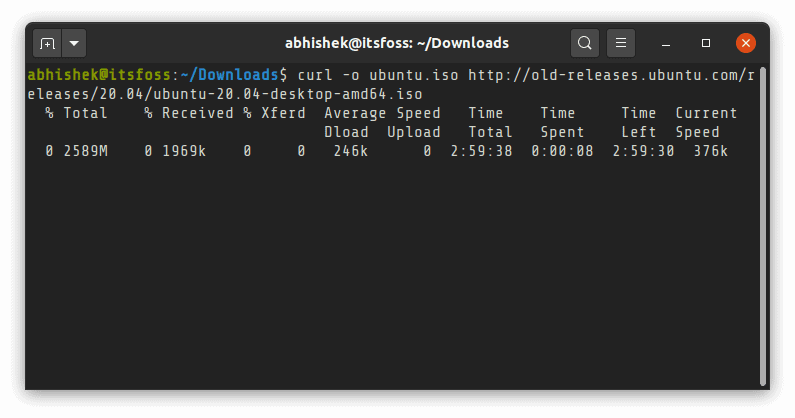
Always verify ISO checksum using SHA256. On Linux:
sha256sum AlmaLinux-9.1-x86_64-dvd.iso
Compare it with the CHECKSUM file from the repository.This step ensures integrity and security, especially in production environments. Now let us move to the actual installation process.
How to Install AlmaLinux Step by Step Bare Metal or VPS
This section explains how to install AlmaLinux on both physical servers (bare metal) and VPS environments. The installation process is nearly identical in both cases. The only difference is how the ISO is mounted; either through a bootable USB drive or through your VPS provider’s control panel.
Step 1: Boot From USB or Mount the ISO
If you are installing AlmaLinux on a physical server, first create a bootable USB drive using the ISO file. Insert the USB drive into the system and restart the machine.
During startup, enter the BIOS or UEFI settings. This is usually done by pressing F2, F10, DEL, or ESC, depending on your hardware manufacturer. Inside the firmware settings, change the boot order so the system boots from the USB device first. Save the changes and restart.
If you are installing on a VPS, simply mount the ISO from your hosting provider’s dashboard and reboot the server.
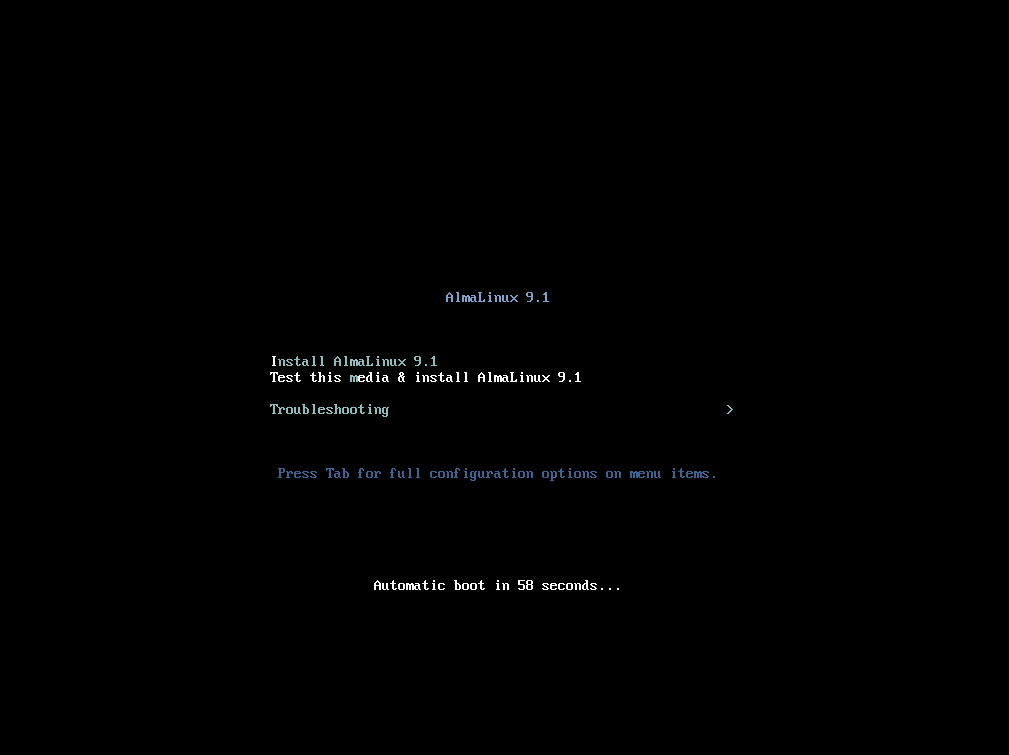
Once the system boots correctly, you will see the AlmaLinux boot screen.
Step 2: Start the Installer
From the boot menu, choose either:
- “Test this media and install AlmaLinux”
- Or “Install AlmaLinux”
Testing the media verifies the integrity of the installation files. While optional, it is recommended for production systems. After selection, the graphical installer will load.
Step 3: Choose Installation Language
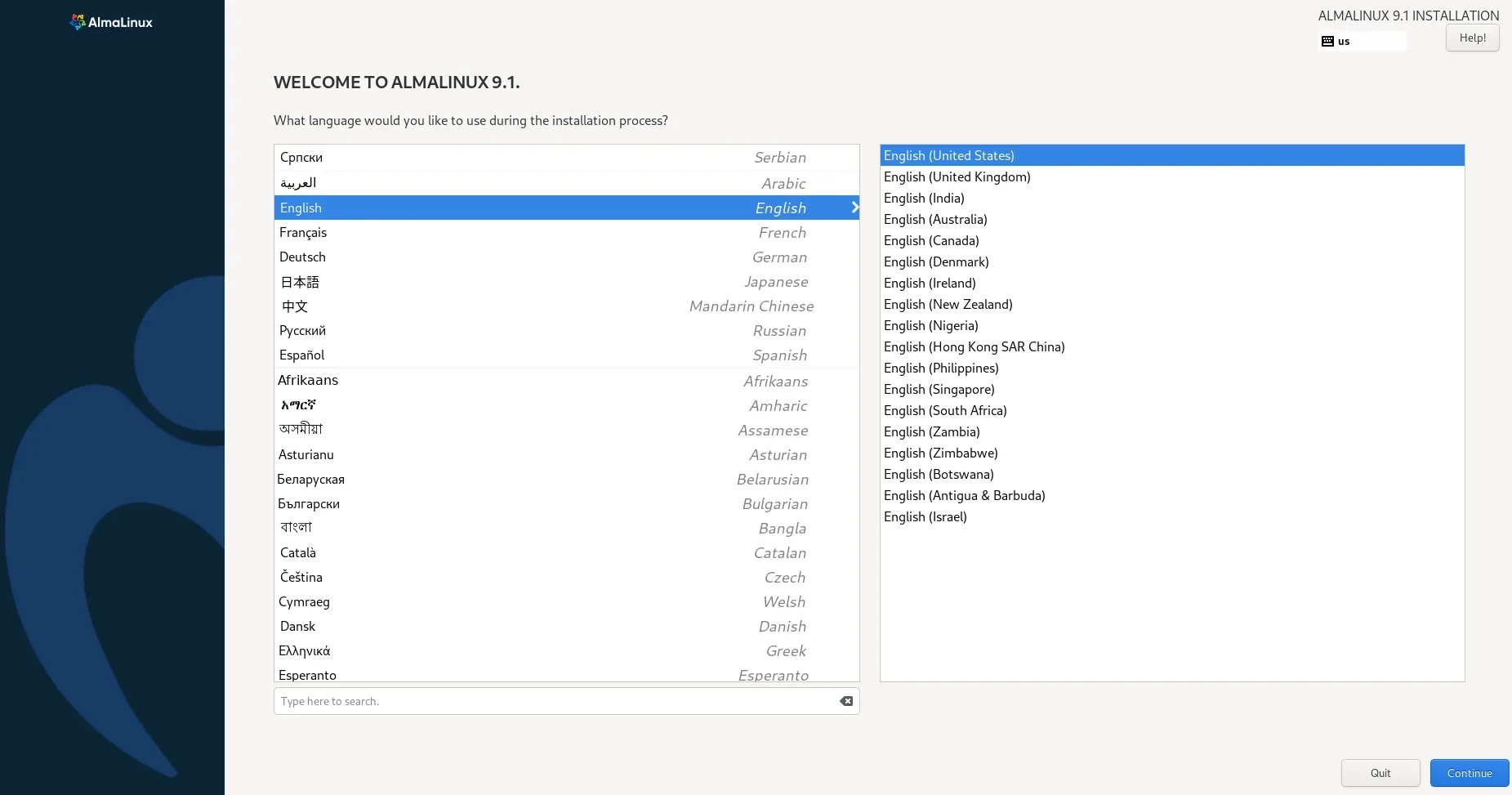
The installer will prompt you to select your preferred language. This setting controls the installer interface and system defaults. Choose the appropriate language and continue.
Step 4: Review the Installation Summary
You will now reach the Installation Summary screen. This is the central configuration hub of the AlmaLinux installer.
From here, you configure:
- Keyboard layout
- Installation destination (disk configuration)
- Network and hostname
- Software selection
- Time and date
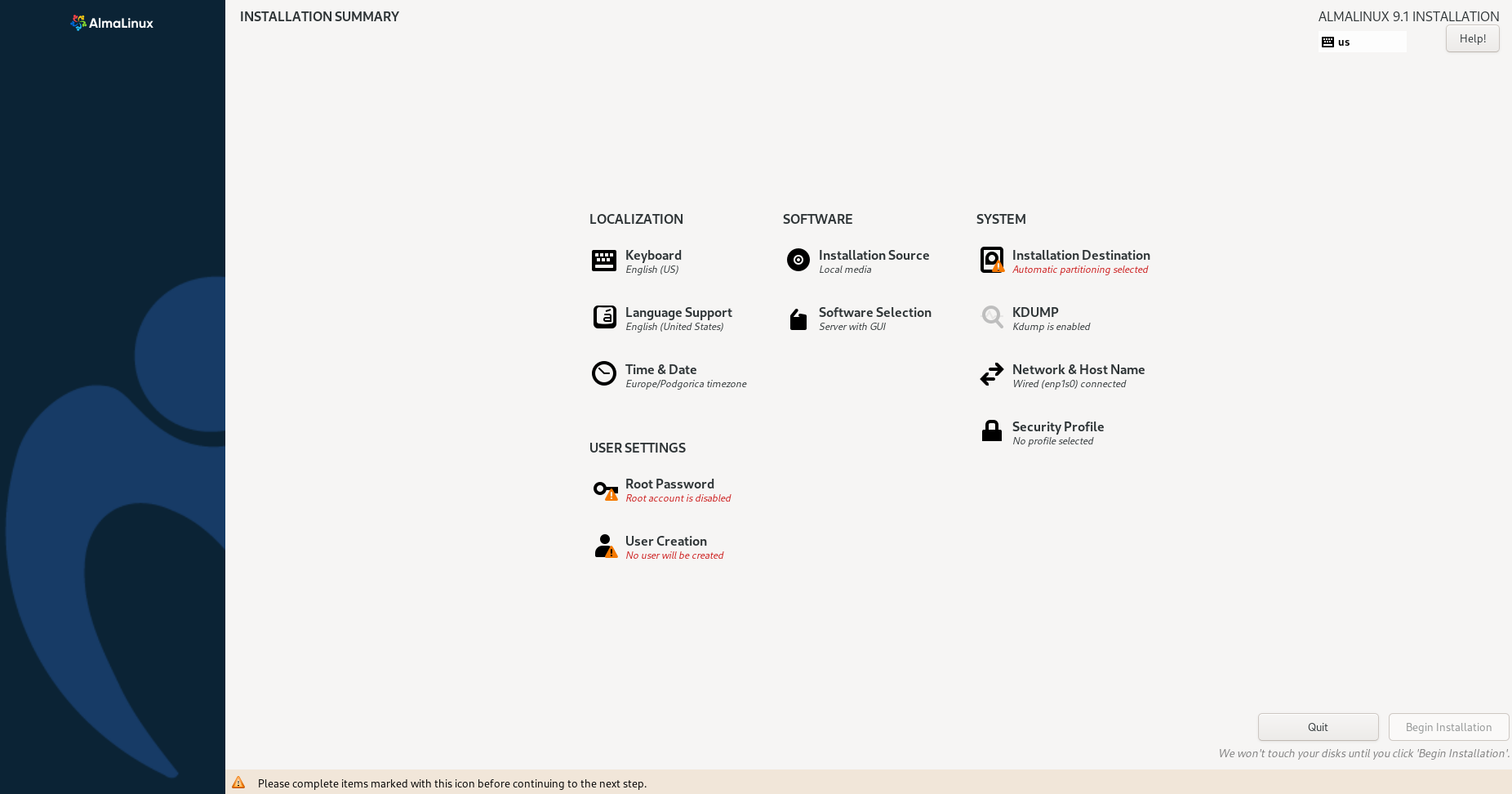
Each section must be configured and marked as “Completed” before proceeding. This screen ensures no critical configuration step is missed.
Step 5: Configure Disk Partitioning
Click “Installation Destination” to configure your storage.
For beginners or test systems, automatic partitioning is acceptable. The installer will create the required partitions automatically.
However, for production environments, custom partitioning is strongly recommended.
A practical server layout typically includes:
- A 1 GB /boot partition
- A root (/) partition with at least 20 GB
- A separate /var partition
- Swap space based on available RAM
Separating /var is important because log files and service data grow over time. If /var shares space with the root partition and fills up, the entire system can become unstable. For database servers, it is even better to create a dedicated volume for /var/lib/mysql.
Using LVM (Logical Volume Manager) is recommended in production because it allows resizing partitions later without reinstalling the operating system.
Step 6: Select Software Environment
The Software Selection section determines which packages will be installed.
If you choose “Server with GUI,” the system will include a graphical desktop environment. This is useful for beginners, lab environments, and learning purposes, but it consumes more memory.
If you choose “Minimal Install,” the system will be installed without a graphical interface. This is the preferred option for servers and VPS deployments because it reduces resource usage and limits unnecessary packages.
For real production servers, always choose Minimal Install. If you are installing AlmaLinux on VirtualBox or Windows 11 for learning, selecting the GUI option may make navigation easier.
Step 7: Configure Networking
Next, open the Network & Hostname section.
Ensure the primary network interface is enabled. In VPS environments, networking is usually configured automatically. On bare metal systems, you may need to manually configure a static IP address, DNS servers, and the default gateway.
Setting a proper hostname, such as server1.example.com, is important for mail servers, hosting control panels, and clustered systems.
For production environments, a static IP address is strongly recommended.
Step 8: Set Root Password and Create User
Before starting installation, you must define authentication settings.
Set a strong root password using at least 12 characters, including uppercase letters, lowercase letters, numbers, and symbols.
Next, create a regular administrative user. For security reasons, it is best practice to add this user to the wheel group and avoid logging in as root for daily tasks.
Step 9: Begin Installation
Once all configuration sections are complete, click “Begin Installation.”
The installer will now copy files and configure the system. This process usually takes between 5 and 15 minutes depending on hardware performance.
Step 10: Reboot the System
When installation finishes, remove the USB drive (if applicable) and reboot the system.
You can now log in using either the root account or the user you created during setup.
Immediately after logging in, update the system:
sudo dnf update -y
This installs the latest security patches.
For server environments, it is also recommended to install essential utilities:
sudo dnf install nano wget curl -y
Enable the firewall service:
sudo systemctl enable firewalld
sudo systemctl start firewalld
Finally, verify that SELinux is enabled and enforcing:
sestatus
Keeping SELinux in enforcing mode improves system security.
At this stage, AlmaLinux is successfully installed on bare metal or VPS.
How to Install AlmaLinux Without GUI Server Installation
When administrators refer to installing AlmaLinux server, they usually mean a minimal, headless setup optimized for production workloads.
In professional hosting environments, graphical interfaces are rarely installed. A GUI consumes additional RAM, increases the attack surface, and introduces unnecessary packages that are not required for server operations.
A minimal installation provides better performance, improved security, and a cleaner production environment.
Selecting Minimal Install
During the Software Selection stage, choose “Minimal Install.” Do not select “Server with GUI,” and avoid optional add-ons unless specifically required. This ensures that only essential system components are installed.
Partitioning Strategy for Production
Production servers should avoid using a single large root partition. A better layout includes separate partitions for /boot, /, and /var, along with swap space sized according to workload.
Separating /var prevents log growth from affecting system stability. Using LVM provides flexibility for resizing volumes as storage needs change.
Network Configuration for Servers
Networking must be verified before finishing installation.
On VPS systems, configuration is usually automatic. On physical servers, you may need to manually assign a static IP address and configure DNS.
After installation, confirm connectivity:
ping 8.8.8.8
ping google.com
Successful responses indicate proper configuration.
Enabling SSH for Remote Access
Most production servers are managed remotely via SSH.
If SSH is not enabled, install and start it:
dnf install openssh-server -y
systemctl enable sshd
systemctl start sshd
Open the SSH service in the firewall:
firewall-cmd --permanent --add-service=ssh
firewall-cmd --reload
Your AlmaLinux server is now ready for remote management.
How to Install AlmaLinux on VirtualBox?
Many users install AlmaLinux on VirtualBox for development or testing.
Here is a practical setup guide.
Step 1: Create a New Virtual Machine
To begin, open VirtualBox and create a new virtual machine. Choose Linux as the type and select Red Hat (64-bit) as the version. Even though AlmaLinux is its own distribution, it is binary-compatible with Red Hat Enterprise Linux, which is why this option works best.
Allocate at least 2 GB of RAM and two CPU cores. While AlmaLinux can run with fewer resources, this configuration provides a smoother experience, especially if you plan to use a graphical interface. For storage, create a dynamically allocated virtual disk with a minimum of 20 GB. This is sufficient for development and lab environments.
Step 2: Attach the ISO
Go to Storage and mount the AlmaLinux ISO file to the virtual optical drive.
Step 3: Configure Networking
Networking mode depends on your goal. If you only need internet access inside the VM, NAT mode is perfectly adequate. However, if you want other devices on your network to reach the virtual machine switch to Bridged Adapter mode.
Step 4: Start Installation
After booting, follow the standard AlmaLinux installation process described earlier. During software selection, choose Server with GUI if you want a desktop environment for testing. If you are simulating a real production server, select Minimal Install instead.
Guest Additions
After installation, improve performance and display resolution:
dnf install kernel-devel kernel-headers gcc make -y
Then insert the VirtualBox Guest Additions CD and install it.
How to Install AlmaLinux on VMware?
AlmaLinux works well on both VMware Workstation and VMware ESXi.
VMware Workstation
In VMware Workstation, create a new virtual machine using the Typical configuration option. Attach the AlmaLinux ISO file when prompted. For the operating system type, choose Linux and select Red Hat Enterprise Linux 8 or 9, depending on your AlmaLinux version.
Allocate at least 2–4 GB of RAM and a minimum of two CPU cores. A 20 GB disk is generally sufficient for development and small server setups. Once the VM is configured, start it and proceed through the standard AlmaLinux installer.
The process inside the installer is identical to installing on physical hardware. The only difference is that VMware handles the virtualized hardware layer automatically.
VMware ESXi (Data Center Deployment)
n enterprise environments, AlmaLinux is frequently deployed on VMware ESXi hosts. The process begins by uploading the ISO file to the ESXi datastore.
Next, create a new virtual machine and select a compatibility mode that matches your ESXi host version. Choose the appropriate virtual hardware version and configure networking using the VMXNET3 adapter, which provides better performance than legacy adapters.
When configuring storage, thin provisioning is acceptable for lab environments, as it conserves space. However, for production systems handling critical workloads, thick provisioning offers more predictable performance.
Once the VM is created, power it on and follow the standard AlmaLinux installation steps.
How to Install AlmaLinux on Proxmox?
Proxmox is popular among hosting providers and VPS companies.
Step 1: Upload the ISO
In the Proxmox web interface:
- Navigate to local storage
- Upload the AlmaLinux ISO
Step 2: Create the Virtual Machine
When configuring the VM, choose either OVMF (for UEFI systems) or SeaBIOS, depending on your environment. For disk configuration, select VirtIO SCSI, which provides optimized performance for KVM-based systems. Set the CPU type to “host” to allow the VM to use the full capabilities of the underlying processor, and allocate at least 2 GB of RAM.
For networking, select the VirtIO model. AlmaLinux includes native VirtIO drivers, so both disk and network devices will be recognized automatically during installation.
Step 3: Install AlmaLinux
Boot the VM and follow the installer.
AlmaLinux includes native VirtIO driver support, so disk and network devices should work automatically.
How to Install AlmaLinux on Windows 11?
When users search for installing AlmaLinux on Windows 11, they usually mean running it inside a virtual machine rather than replacing Windows entirely.
The most common approach is using VirtualBox or VMware Workstation Player. After installing your preferred virtualization software, create a new virtual machine, attach the AlmaLinux ISO file, and follow the normal installation process described earlier.
This method is ideal for developers, students, and administrators who want to practice Linux server management without modifying their primary operating system.
Although AlmaLinux can technically run under Windows Subsystem for Linux (WSL), that setup behaves more like a containerized environment.
It does not replicate a full Linux server with system-level services in the same way a virtual machine does. For realistic server learning and production simulation, a full VM installation is strongly recommended.
How to Install AlmaLinux on Hyper V?
Hyper-V is Microsoft’s built-in virtualization platform and is commonly used in Windows Server environments.
Step 1: Create a New VM
To install AlmaLinux on Hyper-V, create a new virtual machine using Generation 2, which supports UEFI firmware. In some cases, Secure Boot may need to be disabled or configured to use the Microsoft UEFI Certificate Authority template.
Step 2: Allocate Resources
Allocate at least 2 GB of RAM and two CPU cores. Dynamic memory can be enabled if desired, but for predictable performance in server testing, fixed memory allocation is often preferable.
Step 3: Configure Networking
Attach the VM to a virtual switch.
Step 4: Mount ISO and Install
Attach the AlmaLinux ISO and from there, follow the same installation process used for other environments.
Post Installation Checklist Critical Production Steps
Installing AlmaLinux is only the first stage. Proper post-installation configuration is what transforms a basic system into a secure, production-ready server.
1. Update System
dnf update -y
Always perform update immediately after installation.
2. Set Hostname
hostnamectl set-hostname server1.example.com
3. Configure Timezone
timedatectl set-timezone UTC
4. Enable Firewall
systemctl enable firewalld
systemctl start firewalld
Open required ports only.
5. Disable Root SSH Login
Edit:
/etc/ssh/sshd_config
Set:
PermitRootLogin no
Restart SSH:
systemctl restart sshd
6. Install Fail2ban
dnf install fail2ban -y
Enable service.
7. Enable Automatic Security Updates
dnf install dnf-automatic
systemctl enable dnf-automatic.timer
These steps separate hobby installations from real production deployments.
AlmaLinux vs Other Linux Distributions Quick Context
AlmaLinux vs Ubuntu
Ubuntu is popular for cloud and desktop. AlmaLinux is preferred when RHEL compatibility and enterprise consistency matter.
AlmaLinux vs Rocky Linux
Both are RHEL compatible. AlmaLinux has strong backing and structured governance model.
If you are deploying cPanel or enterprise applications, AlmaLinux is often the safest choice.
Final Thoughts
The real power of AlmaLinux is unlocked when deployed on reliable infrastructure.
If you are planning to run production workloads, web hosting, or business applications, consider using a professionally optimized AlmaLinux VPS from MonoVm. With instant deployment, global data centers, affordable pricing, and 24/7 technical support, you can launch your AlmaLinux server within minutes and focus on your application instead of infrastructure setup.
Deploy smarter. Deploy stable. Deploy AlmaLinux the right way.

An experienced tech and developer blog writer, specializing in VPS hosting and server technologies. Fueled by a passion for innovation, I break down complex technical concepts into digestible content, simplifying tech for everyone.