
In this age of connectivity, forgetting WiFi passwords can be downright frustrating anytime there is a need to connect new devices or perhaps let someone else use your online connection. Fortunately, Windows has an easy-to-use mechanism for retrieving network passwords via the Command Prompt (CMD).
This built-in and formidable tool enables you to view stored WiFi credentials without needing any third-party software, so it becomes an excellent choice for IT pros and beginners. We will walk you through simple step-by-step CMD commands to find your WiFi password on Windows and explain what each command does along the way. Then, we will share some additional tips for troubleshooting and keeping your network secure.
Prerequisites Before Getting Started
Before you begin retrieving and find wifi password cmd, it’s important to ensure you meet a few basic requirements. These prerequisites will help you run commands successfully, avoid errors, and protect your system’s security. Having the right setup in place will make the process smooth and efficient.
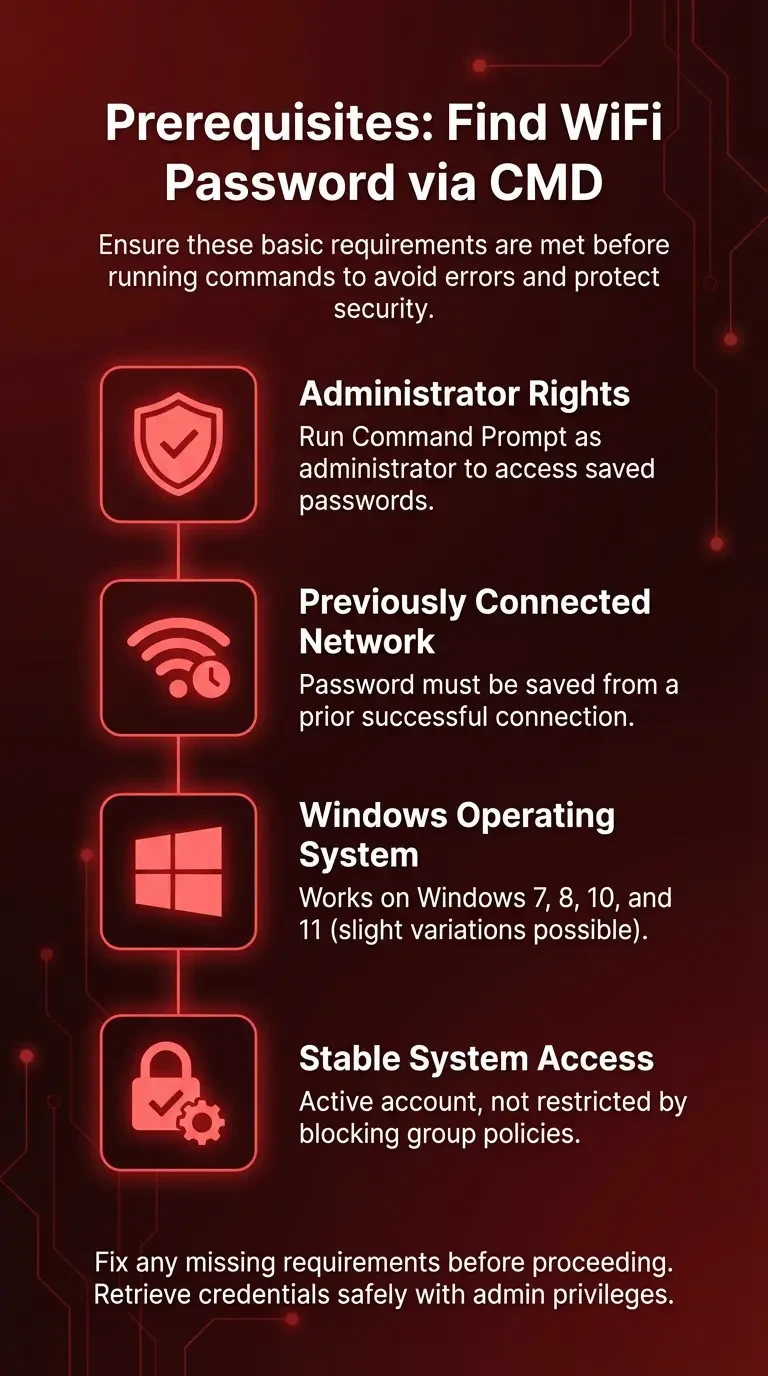
- Administrator Rights: You must run Command Prompt as an administrator to access saved WiFi passwords.
- Previously Connected Network: The WiFi password must have been saved on your computer from a prior successful connection.
- Windows Operating System: This method works on Windows 7, 8, 10, and 11, though some command names or menu options may vary slightly.
- Stable System Access: Ensure your account is active and not restricted by group policies that could block CMD commands.
If any of these requirements aren’t met, take a moment to fix them now to avoid errors or incomplete results. Once everything is confirmed, proceed to the CMD steps below with administrator privileges to safely retrieve your saved WiFi credentials.
🔍 Step-by-Step Guide to Find WiFi Password Using CMD
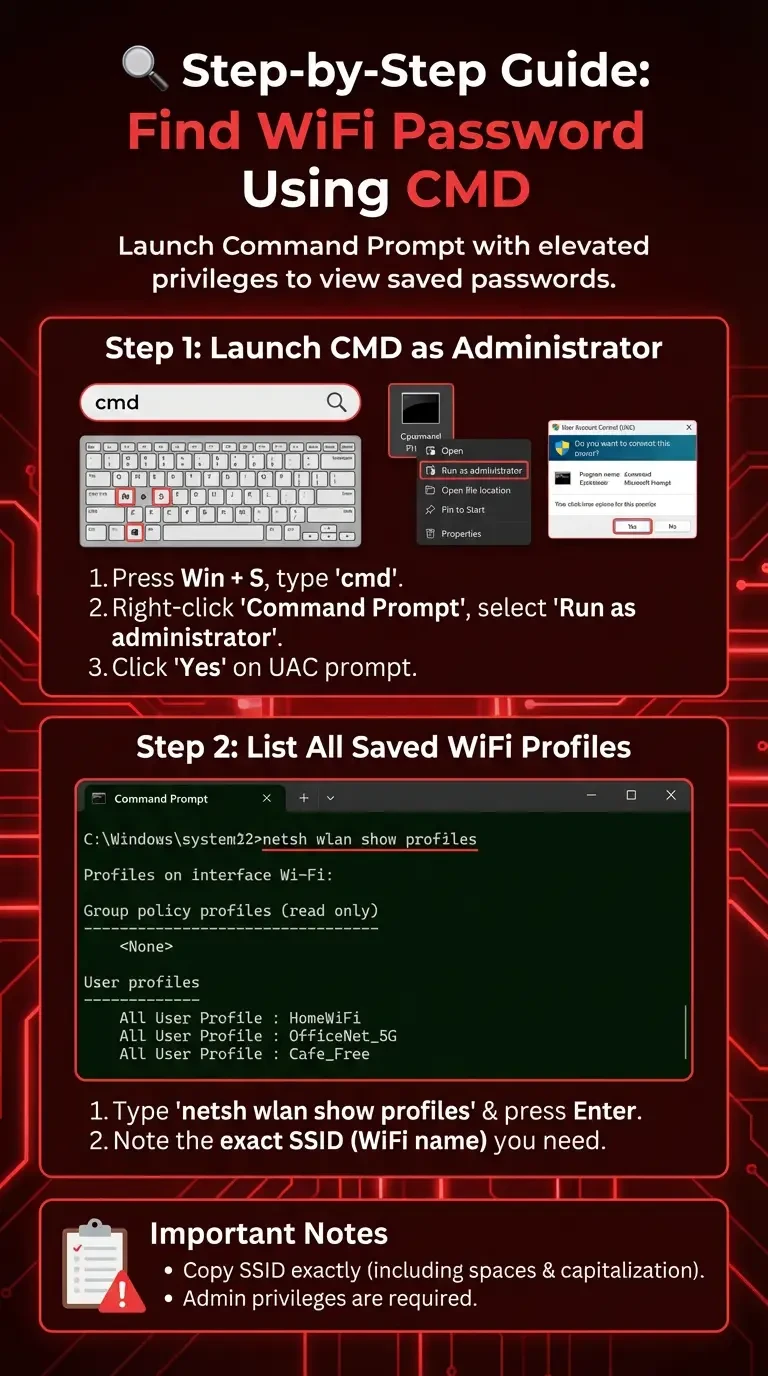
To begin, you need to launch Command Prompt with elevated privileges. Without admin rights, you won’t be able to view saved WiFi passwords.
- Press Windows + S and type cmd in the search bar.
- Right-click Command Prompt and select Run as administrator.
- If prompted by User Account Control (UAC), click Yes to grant permission.
After granting permission, an elevated Command Prompt window will open. You're now ready to run the commands below.
📋 List All Saved WiFi Profiles
Once CMD is open, you can view every WiFi network your computer has connected to in the past.
- Type the following command and press Enter:
netsh wlan show profiles
- CMD will display a list of all stored WiFi profiles. Each profile represents a network your computer has saved.
- Note the exact SSID (WiFi name) of the network you want to retrieve the password for.
Make sure you copy the SSID exactly (including spaces and capitalization) — you'll need the precise name for the next command.
🔑 Show Password for a Specific WiFi Network
Now, you can reveal the password for your chosen WiFi network.
1. In CMD, type the following command (replace WiFi_Name with the actual SSID) and press Enter:
netsh wlan show profile name="WiFi_Name" key=clear
2. Scroll through the output until you find Key Content; the value next to it is your WiFi password.
3. Keep this password secure and avoid sharing it with untrusted individuals to maintain network safety.
For more useful Windows commands that can help you manage and troubleshoot your system, you can check out our complete List of CMD Commands.
🔄 Alternative Methods to Find WiFi Password on Windows
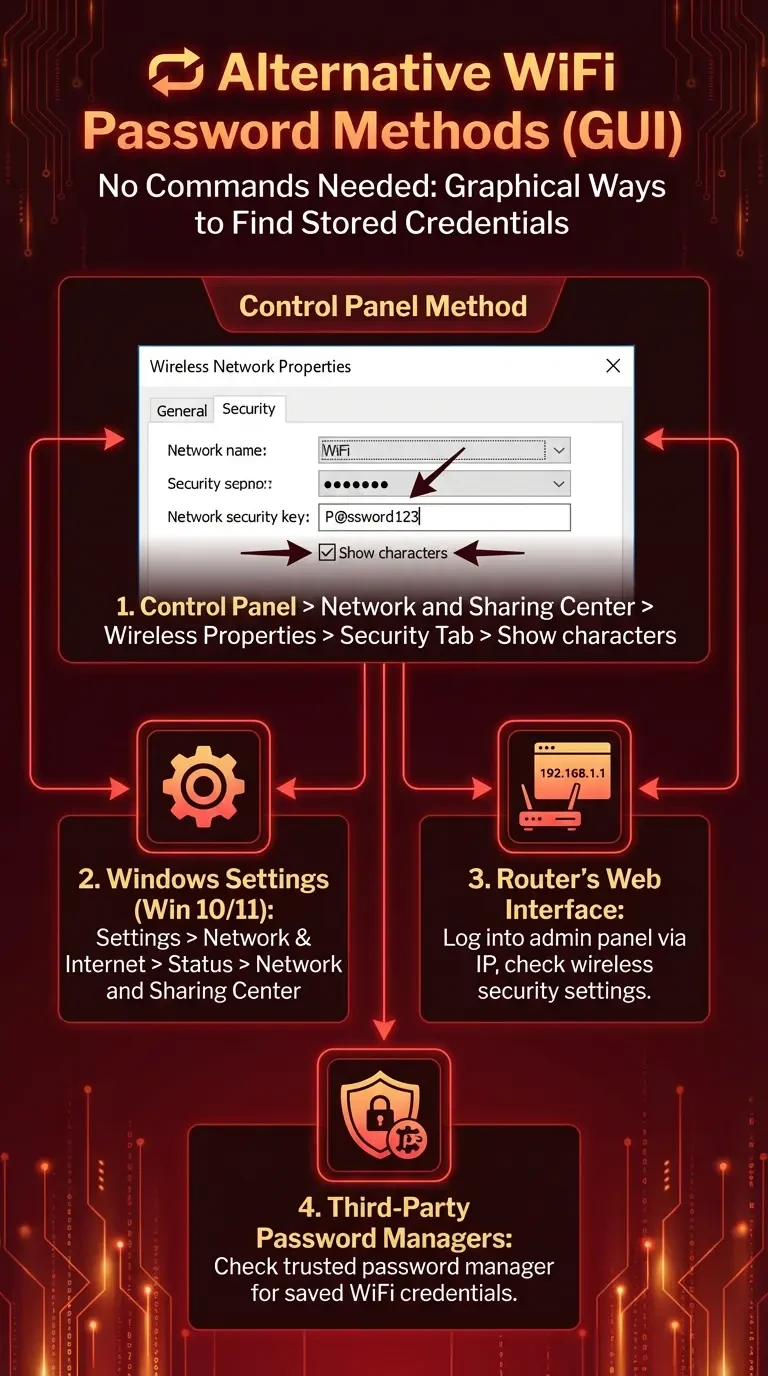
While the quickest command-line retrieval of stored WiFi passwords is via CMD, Windows also offers a few built-in graphical ways to display these passwords that can assist novices. These methods require no typing in commands as they directly take you to the stored network credentials with a solid GUI interface.
- Control Panel – Network and Sharing Center – Navigate to Control Panel > Network and Internet > Network and Sharing Center, select your active WiFi, click Wireless Properties, and view the password under the Security tab.
- Windows Settings (Windows 10/11) – Go to Settings > Network & Internet > Status > Network and Sharing Center to access saved WiFi details.
- Router’s Web Interface – Log into your router’s admin panel using its IP address (e.g., 192.168.1.1) and check the wireless security settings.
- Third-Party Password Managers – If you use a trusted password manager, check if your WiFi password is saved there for quick retrieval.
If you want even more control over your Windows environment or need a dedicated machine for networking and server management, you can Buy Windows VPS and run these commands from anywhere.
📄 Understanding CMD Command Outputs
When you execute the CMD commands netsh wlan show profiles or netsh wlan show profile name="WiFi_Name" key=clear, the Command Prompt will spit out a list of details about your network connection. These outputs come in sections like Profile Information, Connectivity Settings, and Security Settings.
The actual thing that matters if you are after the WiFi password is Key Content under Security Settings, this is where your saved password shows up as plain text. Then you get fields such as SSID name, Authentication type, and Cipher type, which tell you about the network's name and security protocol types (like WPA2 or WPA3).
Furthermore, some of the details shown here could be of technical help while diagnosing network problems. For example, Radio Type shows the WiFi standard your device is using (maybe 802.11n or 802.11ac), and Cost will let you know whether it is a metered connection at all. If the Key Content is blank, it means either the password hasn't been stored on your system or that you didn't execute CMD with administrator privileges.
⚡ PowerShell Method to Retrieve WiFi Password
If you prefer using PowerShell instead of Command Prompt, you can still retrieve saved WiFi passwords with a few simple commands. PowerShell offers similar functionality but can also be integrated into scripts for automation.
- Open PowerShell as Administrator – Press Windows + S, type PowerShell, right-click it, and choose Run as administrator.
- List All WiFi Profiles – Enter:
netsh wlan show profiles
- Retrieve Password for a Specific Network:
netsh wlan show profile name="WiFi_Name" key=clear
Replace WiFi_Name with the actual SSID of the network.
- Optional: Export All Profiles. For backup, run:
netsh wlan export profile folder="C:\Backup" key=clear
This saves all WiFi profiles (including passwords) to the chosen folder.
🔒 Security and Privacy Considerations
Retrieving WiFi passwords using CMD or PowerShell is a powerful tool, but it also comes with responsibility. Mishandling this information can expose your network to security risks; therefore, it’s essential to follow safe practices.
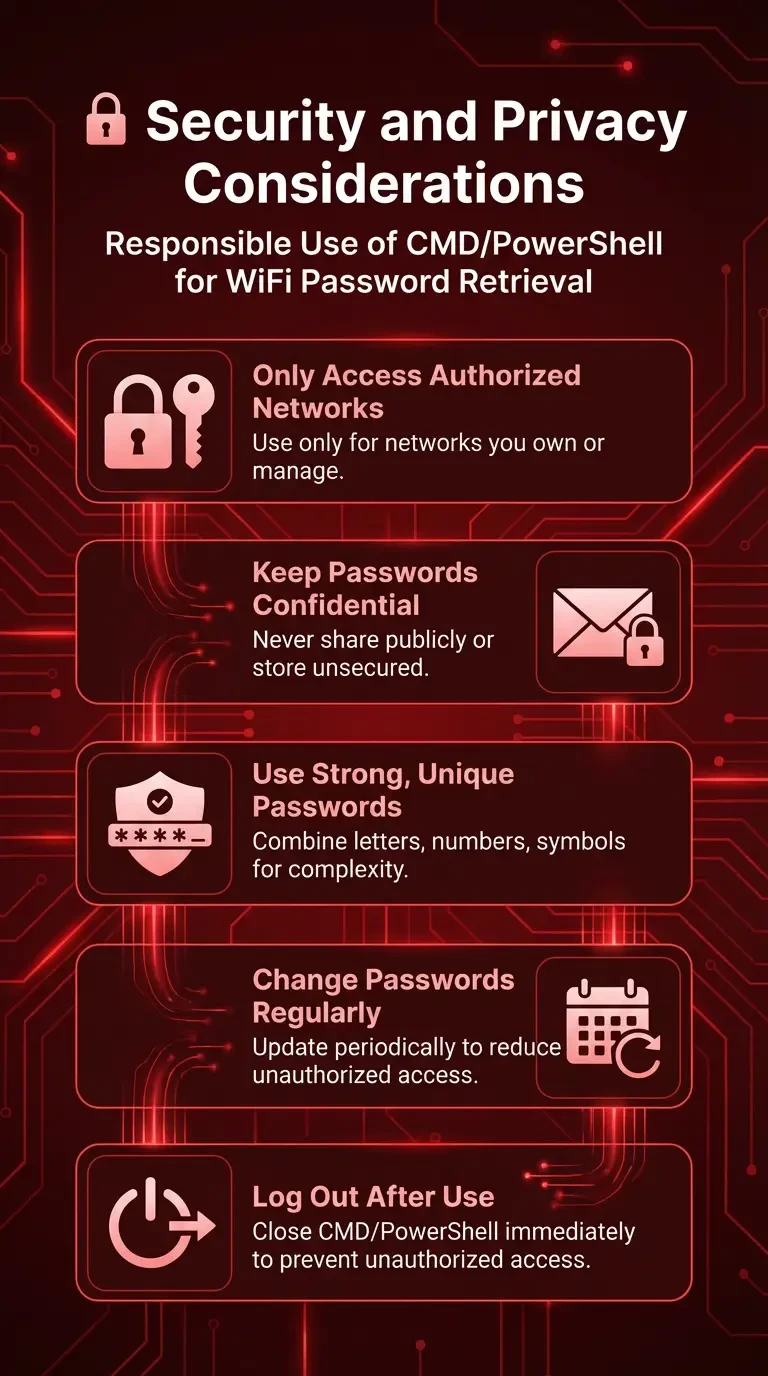
- Only Access Networks You Own or Manage: Avoid retrieving passwords for networks you don’t have permission to use.
- Keep Passwords Confidential: Never share your WiFi password publicly or store it in unsecured documents.
- Use Strong, Unique Passwords: Ensure your WiFi password is long and difficult to guess, combining letters, numbers, and symbols.
- Change Passwords Regularly: Update your WiFi credentials periodically to reduce the risk of unauthorized access.
- Log Out After Use: Close CMD or PowerShell once you’ve retrieved the password to prevent others from accessing it.
By following these security practices, you’ll reduce the risk of exposing sensitive information and keep your network safe from unauthorized access. Treat retrieved WiFi passwords with the same level of care as any other private credential.
🛠 Troubleshooting Common Issues
Sometimes, CMD commands for retrieving WiFi passwords may not work as expected due to missing profiles, permission restrictions, or incorrect syntax. The table below lists common problems, their causes, and quick solutions to get you back on track.
|
Issue |
Possible Cause |
Solution |
|
Access Denied |
CMD is not running with administrator rights |
Close CMD, reopen it by right-clicking Command Prompt and selecting Run as administrator |
|
No Profiles Found |
Your PC has never connected to a WiFi network or saved the password |
Connect to the WiFi at least once, then try again |
|
Key Content is Blank |
Password not stored or profile corrupted |
Reconnect to the WiFi and ensure "Save password" is enabled |
|
Profile Doesn’t Exist |
Incorrect SSID name entered in the command |
Double-check the profile name from netsh wlan show profiles list |
|
Command Not Recognized |
Typo or missing netsh utility |
Verify the spelling, ensure you’re using Windows, and run the command again |
With these quick fixes, most common issues can be resolved without needing advanced troubleshooting. If problems persist, double-check your Windows settings or consider using alternative methods like the Control Panel or router access.
Conclusions
To find the WiFi password on Windows using CMD is a quick way to recover forgotten credentials without the aid of third-party tools. There are the right commands to be used and an understanding of their outputs to safely retrieve the passwords of the networks to which the user was connected before.
However, the convenient prospect of this method must be balanced with the ethical use of these methods, guarding of sensitive information, and restricting yourself to only using networks you have been given permission to use. Combining these skills with some best security measures will help you in managing your networks better and will keep your digital environment safe.


Hello, everyone, my name is Lisa. I'm a passionate electrical engineering student with a keen interest in technology. I'm fascinated by the intersection of engineering principles and technological advancements, and I'm eager to contribute to the field by applying my knowledge and skills to solve real-world problems.