
Numerous problems can be solved by changing the IP address of your VPS, including circumventing geo-restrictions, reducing the likelihood of your server being blacklisted for spam, securing your server, and maintaining anonymity. No matter if you are a developer, system administrator, or privacy-oriented user, knowing how to change your VPS IP address is a vital ability for the management and protection of your virtual environment.
In this tutorial, we will discuss the various approaches to changing or giving a new IP on both Linux and Windows servers, how to get a new IP from your service provider, and what actions to take next to guarantee everything runs well.
⚙️ Before You Begin: Things to Consider
.JPG?1763207415428)
Before changing your VPS IP address, it’s important to understand that not all hosting providers allow instant IP replacements, and improper configuration can temporarily disconnect your server. Reviewing your provider’s IP policies and preparing your DNS and firewall settings in advance can help you avoid downtime or access issues.
|
Factor |
Description |
Why It Matters |
|
Hosting Provider Policy |
Some providers (like DigitalOcean or Linode) require a support ticket or charge a small fee for new IP assignments. |
Ensures you comply with provider terms and avoid service suspension. |
|
DNS Records |
Changing your IP requires updating DNS A and PTR records for your domains. |
Prevents website downtime and ensures proper domain resolution. |
|
Firewall Rules |
Firewalls often restrict traffic by IP, so you’ll need to update rules after the change. |
Maintains SSH, RDP, and application accessibility. |
|
SSH / RDP Access |
Remote connections rely on the old IP address. |
Without updating your connection, you may get locked out. |
|
Downtime Window |
Network changes may cause brief interruptions. |
Helps you plan maintenance during off-peak hours. |
Once you’ve reviewed these points, create a full server backup to safeguard your configuration files and data.
🖥️ Method 1: Change VPS IP via Hosting Provider
The easiest and safest way to change your VPS IP address is through your hosting provider’s control panel. Most providers, including MonoVM, DigitalOcean, and Linode, allow you to request or assign a new IP address directly from your account dashboard.
- Log in to your hosting dashboard: Access your VPS management panel (e.g., MonoVM Client Area, DigitalOcean Control Panel, or Linode Cloud Manager).
- Locate your VPS instance: Find the specific virtual server you want to modify.
- Check for IP management options: Look for sections labeled Networking, Network Interfaces, or IP Management.
- Request or assign a new IP: Some providers allow automatic reassignment, while others require a support ticket to allocate a new IP address.
- Update DNS and firewall settings: Once the new IP is active, update all DNS A records and adjust your firewall or security rules accordingly.
- Reboot the VPS if required: Some systems need a restart to apply the new IP configuration.
Keep in mind that hosting providers may have specific policies or limits on IP reassignment frequency, so always check their documentation first.
🐧 Method 2: Manually Change VPS IP on Linux
If your hosting provider doesn’t offer direct IP reassignment, you can manually configure a new IP address within your Linux VPS. The process varies slightly across distributions like Ubuntu, Debian, CentOS, or RHEL, but the concept remains the same.
- Check current network settings: Run ip a or ifconfig to view your current IP address and network interface name (e.g., eth0 or ens18).
- Ubuntu / Debian (Netplan method): Edit the configuration file:
sudo nano /etc/netplan/01-netcfg.yaml
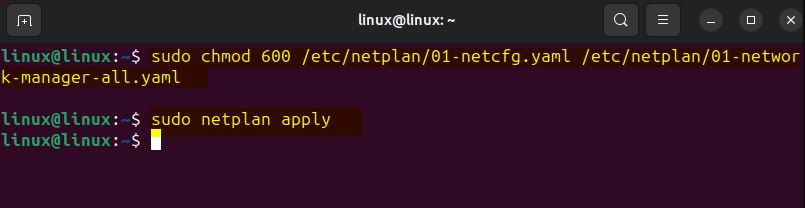
- Update or replace the existing IP under addresses: with your new one, save changes, and apply using:
sudo netplan apply
- Debian (Interfaces method):
sudo nano /etc/network/interfaces
- Modify the address line with the new IP, then restart networking:
sudo systemctl restart networking
- CentOS / RHEL:
sudo nano /etc/sysconfig/network-scripts/ifcfg-eth0
- Replace the existing IPADDR= value with the new IP and restart the network:
sudo systemctl restart network
- Using NetworkManager (unified approach):
nmcli con show
nmcli con mod "System eth0" ipv4.addresses <new_IP>/24 ipv4.method manual
nmcli con up "System eth0"
After applying the changes, verify the new IP configuration using ip a and ensure your SSH connection remains active.
⚙️ Method 3: Change IP on Windows VPS
Changing the IP address on a Windows VPS can be done either through the graphical interface (GUI) or by using PowerShell commands. Both methods allow you to assign a static IP, replace an existing one, or switch to DHCP depending on your server setup.
- Open Network Settings: Press Win + R, type ncpa.cpl, and hit Enter.
- Select your network adapter: Right-click on your active adapter (usually named Ethernet) and choose Properties.
- Modify TCP/IP settings: Select Internet Protocol Version 4 (TCP/IPv4) and click Properties.
- Set new IP manually: Choose “Use the following IP address” and enter your desired IP, subnet mask, and gateway.
- Confirm and restart network: Click OK, then restart your VPS to apply the new configuration.
Using PowerShell:
- Check current configuration:
Get-NetIPAddress
- Assign a new IP address:
New-NetIPAddress -InterfaceAlias "Ethernet" -IPAddress <new_IP> -PrefixLength 24 -DefaultGateway <gateway_IP>
- Verify changes:
Get-NetIPAddress | Select IPAddress, InterfaceAlias
After making the change, test your connection via Remote Desktop (RDP) or ping the new IP from another device. For a complete guide on initial VPS setup and configuration, refer to How to Setup VPS before performing advanced network adjustments.
Update DNS Records After Changing IP
If your VPS's IP changes, the first thing you need to do is change your DNS records so that your domain name still points to the right server. Then, go to the control panel of your DNS provider, which could be Cloudflare, GoDaddy, or your hosting dashboard, and change the A record by adding the new IP address. If you are using mail services or have subdomains, then you will have to do the same thing for the respective records.
To reduce the time your site is down, set a lower TTL (Time To Live) value, which will assist in quicker global DNS propagation, before making any changes. Once the change is made, wait for a period of time usually it will be a few minutes up to a few hours—before the new records are completely active.
🧪 Test & Verify New IP Configuration
After changing your VPS IP address, it’s important to verify that the new configuration is active and functioning properly. A few simple checks can confirm whether your server is reachable and all connected services are running as expected.
- Check IP locally: Run ip a (Linux) or Get-NetIPAddress (Windows) to confirm the new IP is assigned correctly.
- Ping test: Use ping <your_new_IP> from another device to verify network connectivity.
- SSH or RDP login: Try reconnecting to your VPS using the new IP address to ensure remote access works.
- Check DNS resolution: Use nslookup yourdomain.com or dig yourdomain.com to confirm your domain resolves to the updated IP.
- Web and service test: Open your website or hosted apps in a browser to ensure they load correctly from the new IP.
If any of these tests fail, double-check your network configuration files and firewall rules.
🧰 Troubleshooting Common IP Change Issues
Sometimes, even after correctly changing your VPS IP address, you might face connection drops, DNS errors, or loss of access via SSH or RDP. These issues usually stem from misconfigured network files, outdated DNS records, or firewall restrictions.
|
Issue |
Possible Cause |
Solution |
|
No Internet Access |
Incorrect gateway or subnet mask in configuration. |
Double-check your network file or PowerShell settings and ensure the gateway matches your provider’s configuration. |
|
SSH or RDP Not Working |
Firewall rules are still tied to the old IP. |
Update inbound rules for ports 22 (SSH) or 3389 (RDP) to accept connections from the new IP. |
|
DNS Not Resolving |
A record not updated or TTL not expired yet. |
Edit the A record to point to the new IP and wait for propagation (can take up to 24 hours). |
|
Duplicate IP Error |
Another VPS or instance is already using that IP. |
Contact your hosting provider to verify IP allocation. |
|
Network Restart Fails |
Syntax or indentation errors in Netplan or interface files. |
Validate YAML or configuration syntax using sudo netplan try before applying permanently. |
If the issue persists after these checks, try rebooting your VPS and verifying your configuration again. For better reliability, consider setting up How to Set up a Floating IP on a VPS, which allows easier failover and IP management without manual reconfiguration.
Conclusion
The ability to change your VPS IP address is a skill that ranks high in the list of skills that contribute to keeping a virtual environment flexible, private, and under control. Be it through the Linux or Windows commands or simply asking the hosting provider, the change is done, and one thing remains: careful preparation, which includes backups, DNS changes, and firewall modification. Testing your connection and checking the new setup are to be done to make sure that everything is running smoothly. If you want to explore more advanced networking options, you can check VPS Hosting plans on MonoVM for scalable and customizable solutions tailored to your needs.


Hello, everyone, my name is Lisa. I'm a passionate electrical engineering student with a keen interest in technology. I'm fascinated by the intersection of engineering principles and technological advancements, and I'm eager to contribute to the field by applying my knowledge and skills to solve real-world problems.